Curio Professional 11.3 Mac OS X
This post was published 9 years ago. Download links are most likely obsolete. If that's the case, try asking the uploader to re-upload.
File Size: 43.9 MB
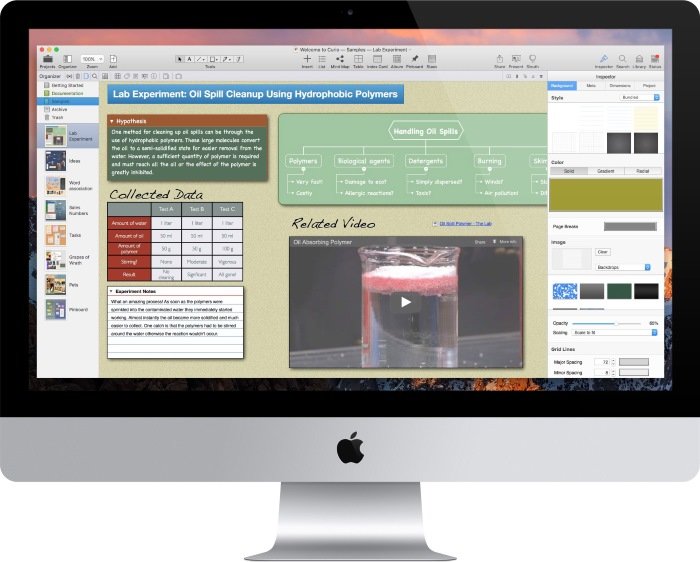
Curio is the premier brainstorming and project-management application designed to promote visual thinking. Using Curio's innovative freeform interface and tools, you can intuitively gather, associate, and recall your ideas, while easily managing all the notes and documents associated with your project.
The heart of Curio is the idea space. Think of idea spaces as your whiteboard, notebook, and sketchpad all wrapped up into one. Within a Curio project, you can create an unlimited number of idea spaces where you can place anything anywhere on the page. Brainstorm or organize your notes with freeform collages of text, images, URLs, documents, Mail messages, movies, and sounds. Give the idea space a note paper or graph paper style, or perhaps a linen paper texture. This is your idea space, with your notes and ideas. Make it the way you want it to look.
What's New Version 11.0
Master Styles:
A figure or idea space style private to a project that, when changed, is reflected to all uses of the style throughout the project. For instance, tweak the coloring or font for a heading figure style and instantly dozens of instances are updated.
Master Figure Stencils:
Like master styles but for stencils. Create a figure stencil - perhaps for a website prototype or a gardening or floorplan element - and then change attributes of that figure to broadcast the changes throughout a project.
Master Idea Space Templates:
The ultimate. Create a master idea space template, styled as you wish with figure content including boilerplate items. Then use that master to create idea spaces. Change anything on a master and all uses refresh. You can even base a master on another master for nested inheritance.
Automatic Backups:
Let Curio automatically handle periodic backups of your projects, as well as its support and personal repository folders.
External Project Asset Library:
Curio can now store a project’s assets in an external folder which sits alongside the project file which allows Spotlight to search your project’s asset library.
Sleuth Shelf:
A mini Sleuth readily accessible in the shelf for quickly finding images, definitions, or inspiration.
Stencils Shelf:
You can now view and manage collection stencils in the Stencils shelf such as mind map and index card stencils. In addition, Pro users can see their master figure stencils.
Organizer Trash:
A project Trash which holds deleted Organizer idea spaces and other items until you close the project which allows for quick and easy recovery from accidental deletions.
Organizer Archive:
A special section in the Organizer for long-term storage of idea spaces, with optimized searching and memory management.
Auto Layout:
Set figures so they dynamically move and resize themselves when the idea space dimensions change.
Search Scope:
The Search shelf can now search within a specific section or section hierarchy, an idea space or idea space hierarchy, or the new Archive and Trash sections.
Library Scope:
The Library shelf can now display assets within a specific section or section hierarchy, an idea space or idea space hierarchy, or the new Archive and Trash sections.
New Project File Format:
Curio 11’s new project file format is more compact, more efficient, more robust, and more compatibile with sync services such as Dropbox.
Finder Tags for Project Categories:
Project categories that you create in Curio are now automatically mapped to Finder tags. This allows Finder searching and organization of categorized projects.
Shape Enhancements:
Vastly improved multipoint orthogonal line drawing, plus better left/right arrow shapes.
Text Enhancements:
New typeface popup for choosing a specific weight, a font size stepper for quicker size changes, and a handy capitalization popup that will transform text into various capitalization schemes right before rendering.
Mind Map Enhancements:
Support for the new iThoughts v4 file format, plus support for MindNode’s zip file format.
List Enhancements:
More flexible line spacing options, a new line prefix style, and smarter paste as list.
Print Enhancements:
Change page orientation on the fly in the Print dialog and a new Fit with Auto Expand option for better scaling of large idea spaces.
Work Schedule Enhancements:
Easier access to work schedule options plus new internationalization support for automatic date calculations.
Project Milestone Enhancements:
Improved ability to search a project for changes based on specified project milestones.
Hyperlink Enhancements:
Curio now supports more inconvenient in-project relative hyperlinks, plus other new hyperlink features.
Versioned Support Folders:
New versioned application support and personal repository folders establishes a more robust and protected structure for major version upgrades.
New Welcome Project and Docs:
Curio now includes a fantastic new Welcome to Curio project with a revised guided tour to Curio’s major features, the complete user manual, and sample gallery.
Plus Much, Much More:
Numerous other improvements including code updates and updated 3rd party frameworks.
What's new in Curio 11.3
Keyboard Shortcuts:
Here are some new keyboard shortcuts:
Bring figure to front - ⌥Click
Prevent dragged figure from dropping into collection - Hold ⌥ before releasing drag
More Powerful Master Stencils:
Curio now provides new abilities to its master figure stencil functionality! An example is the best way to describe what's new...
Business Card:
Say you need to have nicely styled business card in several locations throughout your project.
First, design the card using Curio's rectangle figures, text figures, and image figures.
Collect those figures into a single group figure by selecting them and choosing Arrange > Group.
Right-click on that group figure and save it as a master stencil: "Business Card".
Use that stencil in multiple locations throughout your project via copy/paste, Insert > Figure Stencil, or the Stencils shelf.
Making Changes:
If you'd like to make changes to the stencil, right-click on an instance of the stencil and can choose Edit Stencil.
Curio will bring you to the stencil editor where you can edit the contents of the group figure. Conveniently Curio will now automatically ungroup and regroup the contents to make this an easier process.
As before, you can change various color, border, font, and other attributes of any existing figures, and those changes will be reflected to all instances of the stencil.
Now in this release, Curio will broadcast additional modifications to a master stencil:
Move and resize existing figures.
Add new figures and remove existing figures from the stencil.
Using these new features you can completely change the look of your master stencil, such as the example business card, and all instances throughout your project will dynamically update.
Default Master Styles for a Project:
Global Default Styles:
Curio has always allowed you to redefine the default figure style, for various figure types such as lists and mind maps, instead of using the bundled default style.
For example, if instead of the bundled default list style you wish to use a different bundled or personal style you simply style a list the way you wish then choose Format > Set Default Style for List Figure
Now choosing the Insert > List menu item (or ⌃⌘L) will instantly create the same style of list in this project and in any other projects! You have set a new global default styling for all list figures you create in the future.
When you select any list figure, the menu now changes so you can easily apply the default list style, set a new default list style, or reset the default list style to the bundled default.
Master Default Styles:
But what about master styles? These are styles that are private to your project, so they obviously can't become global defaults.
Now you can tell Curio to use a particular master list style when you create lists in this project only.
The process is very similar to the above, but when you select a figure that has a master style associated with it the menu looks like this:
Once set then that master style will be used when creating new lists, but only in this project. Clicking the menu again will show you these options for applying, setting, or resetting the default master style for this figure's type.
Normal Figure Selected:
Once a default master style is selected, if you select a list figure in your project that isn't associated with a master style, then the options change to this
Notice that while you can apply the default master style to it, or reset the default master style, you can't set this figure's style as the new default master style because this figure isn't associated with a master style. (Hopefully that makes sense.)
HTML Export Lightbox Template
Thanks to an amazing customer, and our super-cool customizable HTML export templates, Curio now includes a new, very slick bundled HTML template: Lightbox! The key feature, compared to our existing templates, is that instead of "surfing" to a clicked-on image it will open it in a popup lightbox.
It uses the Lity lightbox jQuery component: a lightweight and powerful Javascript/CSS code module which works wonderfully on desktop and mobile browsers.
We also added the Hammer.js jQuery component so swipes are now supported to navigate through the slides.
iPad HTML Viewer Apps:
This customer started down this road because he wanted to export a presentation of his Curio project on his iPad. Goals included high quality results that displayed full screen on the iPad and would work even if not connected to the Internet.
He tried several solutions in his custom HTML template, many worked well but some had annoying quirks. Like, the viewer app wouldn't remain in full screen mode when tapping to continue through the presentation.
The winner was HTML Mixer & Presenter! You can even use iTunes File Sharing to transfer an HTML export to the app to try it out for free. The results are perfect! (Minor tip: before beginning your presentation in HTML Mixer tap the More... button then turn off Navigation. That way it doesn't grab taps in the top-right corner which allows Lity to handle taps on its "x" to close an image popup.)
Template Contents:
To support Lightbox this release of Curio will automatically copy any files or subfolders located within the specified HTML template's directory to the destination location. That way templates can reference other resources such as Javascript, CSS, or images.
More information about HTML export and user-customizable templates can be found via Help > Curio Documenation.
Better List and Mind Map Automatic Styling:
As forecast back in the Curio 11.1 release notes Curio will no longer adopt the confusing "sibling style override" automatic styling of figures added to lists and mind maps that previously existed for the last couple of releases.
As a reminder of what was discussed back then...
Level Styles:
As you know, both lists and mind maps support level styles. This style information is used to define what items look like by default at different hierarchical levels. You can easily define a style for a level by right-clicking on a figure and choosing Copy Style to Level. When you move items around or promote/demote items within a list, for example, they adopt the appropriate level style.
Sibling Style Override?!:
However, back in Curio 9, we made it so when you added a new item into a list or mind map that new item would adopt the styling of its previous sibling. Why? That way, if you changed the styling of a current item — perhaps gave it a checkbox or changed it to bold — then when you press Return the new item will adopt that styling instead of defaulting to whatever the level style is.
However, this makes the styling confusing: a list may have a level style but then this adjoining sibling style can override it! Worse, it's not always clear what's going on, even for experienced users.
Making it Better:
Curio will no longer do this. Instead Curio will adopt to the level styles specified by the list or mind map style which is certainly more logical.
If you don't like this change, you can re-enable sibling style overrides with the following Terminal command or just click the link:
defaults write com.zengobi.curio "Collection Adopt Sibling Style" -bool yes
Note that even if adopt sibling style is disabled, the visibility of checkboxes and start/due dates will still automatically adopt from the sibling, since this was indeed a handy feature of the previous functionality. So this means the newly added item would first take the level style, then enable the checkbox or date adornments based on its sibling.
However, you can even control this automatic behavior with these additional settings:
defaults write com.zengobi.curio "Collection Adopt Sibling Show Check" -bool no
defaults write com.zengobi.curio "Collection Adopt Sibling Use Dates" -bool no
Tweaks
Drag and Drop Support from Apple Photos
Curio now does a better job handling drag-and-drop of images from Photos.
Pasting Local Hyperlinks
If you Copy As > Hyperlink and paste into an idea space in the same project as a new link figure then it will now be a relative URL in the project.
Add Tab
Sierra introduced a tab bar controled via the Mac OS visible via the View > Show Tab Bar. There's a + sign at the end of the tab bar so you can easily add new projects. By default clicking that button will mimic the File > New menu item (thus new from idea space gallery). Hold Option and click for File > New Blank Project, hold Option+Shift for File > New From Project Template. You can customize this via the new Add Tab Option option in Help > Curio Advanced Settings.
Performance Tweaks:
When dragging figures over a collection Curio will no longer dim the background as that can cause performance issues with more complex idea spaces.
Dragging figures around in general should be much faster as we're now avoiding some unnecessary redraws.
Now using a Cocoa-native call to draw tiled idea space backgrounds which is very fast and doesn't exhibit drawing anomalies when when zoomed.
Other Notable Fixes:
Starting with Xcode 8 builds on Sierra Apple forces all links (text with the NSLinkAttributeName attribute) to be blue and underlined. However, this messes up Curio's figures where the text color should be based on a figure's style. With Apple overriding the text color you could end up with unreadable text if your figure's fill color was blue! We're now swapping out that attribute on-the-fly before rendering so the correct coloring is maintained.
Curio's hyperlink handler will now support curio:// and curio:/// hyperlinks. The latter is technically correct because the first parameter is a path but some apps balk at 3 slashes. So now Curio will handle both.
Switching focus between split content views now works correctly via the keyboard shortcut or when clicking directly on figures being edited in either pane. Also added a blue glow to the side of the splitter so you know which pane has focus.
When saving stencils the selected figures are stored in correct z-order in case figures overlap each other.
Fixed issue where multiple instances of a master stencil on the same idea space were not all getting updated if the master changed.
Fixed issue where a master stencil inserted into an idea space via the Insert > Styled Shape or Stencil gallery wasn't associated with the master stencil correctly.
Pressing Escape while dragging figures will now abort the drag.
Fixed issue where project image popup menu settings weren't available via the inspector shelf, only via the inspector popover.
Fixed issues when creating idea graphs with the text tool.
Requirements: Intel, 64-bit processorOS X 10.10 or later
Homepage
Quick check before we show the links
Helps us keep automated scrapers from hammering the filehosts.