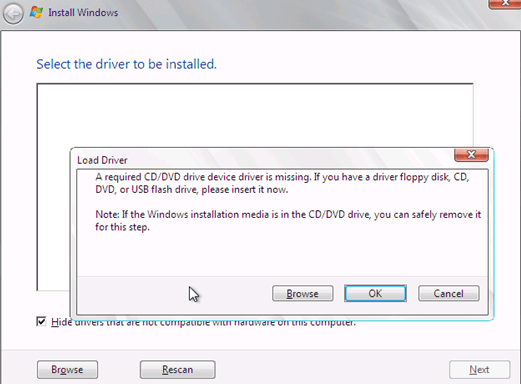
I don't really understand.
[Login to see the link] replaced the 256 GB system drive with a 2 TB one. Why he changed anything in the BIOS, I don't know.
(I checked my 2nd generation ThinkPad X1 Yoga – the drive isn't visible in the BIOS at all, which is a bit strange. This is probably the first computer I've ever seen where the drive isn't detected in the BIOS, but that's how it is. It was my first time looking into the ThinkPad's BIOS, and I bought it a long time ago, but I rarely use it.)
I don't know the drive, but I assume that aside from mounting issues (it's shorter), there are no other problems that would prevent it from working.
Since he changed something in the BIOS, that means he has access to the BIOS, so clearing it by removing the battery or shorting it doesn't seem to make sense.
Likewise, I'm not sure what installing the Intel® Rapid Storage Technology (Intel® RST) drivers is supposed to achieve.
From Intel's website:
Configuration and maintenance of RAID 0/1/5/10
Changes for Intel® Optane™ Memory.
Intel® VMD support on 12th up to 15th Generation platforms only with an Intel® VMD capable BIOS.
I could be wrong, but it seems to me that if no damage (whether mechanical or caused by electrostatic discharge) occurred during the drive replacement, the only reason the computer isn't booting from the old drive might be related solely to the Secure Boot settings.
P.S.
It was bothering me a bit, so I checked it out. On my ThinkPad, a message appears during startup saying that to interrupt the boot process, you need to press Enter. A menu appears—which I obviously didn’t read 😂—allowing you to enter the BIOS, select the boot drive, and also run a hardware test (F10). After selecting it, you can test the laptop, and there’s also the option to test the drive, which is listed correctly there.